What is WordPress ?
Wordpress is World top CMS Service.

After finding out the massive number of users WordPress has, it may leave you wondering, why is it so popular?
A mixture of several factors should be taken into account. The general viewpoint is that WordPress is a simple blogging tool, however, it is much more than that.
Due to the fact that Wordpress is free and an open source project, it allows anyone to improve and edit its code according to one’s liking. It also features thousands of free plugins, themes, widgets, and other tools.
All these features allow you to create any type of website, starting from simple blogs, personal websites or portfolios, ranging to e-shops, knowledge bases or job boards.
Another factor is that WordPress is completely free and supports all hosting platforms with PHP and MySQL. On top of that, this CMS is constantly updated with new versions that improve security, include new features and improve overall performance.
Last, but not least, WordPress has a huge community with dedicated forums and discussions all over the internet. The amount of data that is available and thousands of WordPress tutorials also make WordPress one of the easiest to use content management systems out there.
What is a CMS?
A content management system or CMS for short is an application with the ability to create, modify and publish digital content. In most cases, it also supports multiple users, allowing them to work in collaboration.
For example, in WordPress it is possible to create several administrative users, each one having different privileges. Content management systems also include text and formatting features, the ability to upload videos, photos, audio, maps or even your own code.
A content management system consists of two major components:
- A content management application (CMA). The CMA can be referred to as the graphical user interface (GUI) that lets a user create, modify, remove and publish content without ever needing to have knowledge of HTML or programming languages.
- A content delivery application (CDA). The CDA is responsible for the back-end services that manage and deliver content after it is in the CMA.
Other features worth mentioning are:
- SEO-friendly URLs
- Online support and communities
- User/group functions
- Various templates and designs
- Installation wizards and upgrades/updates
The three most popular content management systems in the world are WordPress, Joomla, and Drupal.
WordPress.com vs. WordPress.org
WordPress.com and WordPress.org are two ways of hosting a WordPress site.
The thing that varies with these two methods is the actual host. By using WordPress.org, you may download the script free of charge and host it yourself on a local machine or with a hosting provider (such as Hostinger).
On the other hand, WordPress.com takes care of all that by hosting the site for you. You don’t have to manage a web server, pay for hosting or download software, however, ads are shown on your site.
Both WordPress.org and WordPress.com have certain pros and cons.
If you are not interested in having your own hosting or managing a web server, then WordPress.com may be the way to go.
It is free and can be quickly set up. You will also have various features and options for your site’s customization.
However, it comes with downsides. Your website will include WordPress.com in the URL and you will not be able to upload custom themes or plugins.
The ability to edit or modify PHP code behind your site will also not be possible.
Using a self-hosted version from WordPress.org provides more flexibility and control over your site. You will be able to use your own domain name, upload themes, plugins and install them.
You will also have access to your WordPress files, database, and code, meaning that you will be able to modify it according to your liking. The most popular and powerful WordPress sites are self-hosted, as it provides greater flexibility and the ability to implement custom functionality, code, and designs.
Last but not least, in case WordPress is not the CMS for you, having your own hosting account will allow you to test other content management systems such as Drupal or Joomla.
This WordPress tutorial will focus on the self-hosted WordPress version.
Step 1 – Installing WordPress
One reason for WordPress popularity is the low system requirements needed to run this CMS on a web server:
- PHP version 5.2.4 or greater.
- MySQL version 5.0.15 or greater or any version of MariaDB.
You would probably have to search for a hosting provider which lacks WordPress support. Many hosts use various auto-installers to make the WordPress installation process as simple as possible.
By using auto-installers, users no longer have to deal with database creation or file uploading.
In this part of our WordPress tutorial, you will learn two different ways to install WordPress.
Before proceeding with WordPress installation, you need to decide on how you want to access your website. Do you want WordPress on your domain name root (example.com), subfolder (example.com/blog) or subdomain name (blog.example.com)? Only if you want to setup WordPress on a subdomain name, you will have to take an additional step and create a subdomain name. On Hostinger this can be easily done in the Subdomains section.
Option 1.1 – Installing WordPress on Hostinger by Using Auto Installer
Let’s start with the simplest and fastest way to install WordPress – Hostinger auto installer. The steps below show how to install WordPress on Hostinger control panel:
- Access Hostinger control panel.
- Locate Auto Installer and open it.
- Enter WordPress in the search field and click on its icon.
- Now fill in website details:
- URL – The URL where WordPress should be installed. If you want to install it on root domain name (example.com) then leave it empty.
- Language – Choose WordPress language.
- Administrator Username – Your WordPress admin username. You will use it to access WordPress admin area.
- Administrator Password – Your WordPress admin password. You will use it to access WordPress admin area.
- Administrator Email – Enter your email address.
- Website Title – The title of your WordPress website.
- Website Tagline – A short sentence or slogan explaining what your website is about.
- Press Install button.
Option 1.2 – Installing WordPress Manually
If you want to understand the basics and learn how WordPress works, you can install it manually. WordPress is famous for its 5-minute installer.
The process is straightforward and similar to any other software installation. So if you have ever installed any computer program – it won’t be hard for you to complete the WordPress installation.
What you need before proceeding:
- FTP client or File Manager
- Latest Version of WordPress
 First of all, download the latest WordPress from the official WordPress.org website.
Once the download is complete, you can start uploading WordPress files to your hosting account. You can use either a File Manager provided by your hosting provider, or an FTP client.
There is no difference which tool you will use to upload WordPress files, besides ease-of-use. The only thing that you should take into account is the destination directory.
For example, if you want to have WordPress on a root domain name, files should be uploaded to the public_html folder; if you want to serve WordPress from a subdomain name or a subfolder, upload the files to the appropriate directory.

WordPress stores information in the database. Thus, it’s mandatory to create one. On Hostinger, a new database can be created in the MySQL Databases section. Be sure to write down the database details as you will need them later.
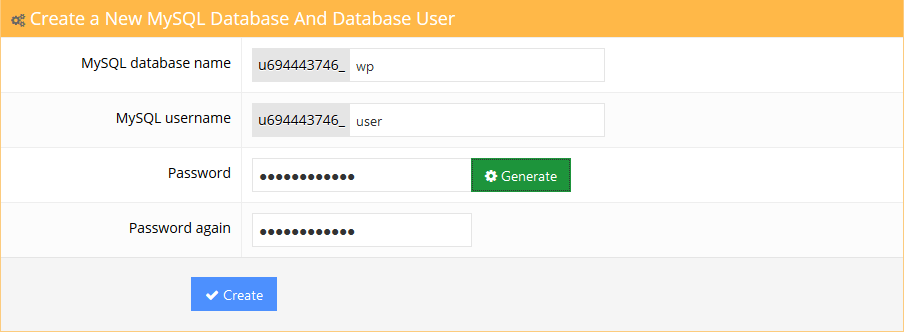
Now visit your domain name in order to start the installation process. You’ll be asked to fill in the MySQL database information, administrator details and the site information.
For more detailed instructions, see the tutorial on how to install WordPress on different hosting control panels. In order to find out how to migrate WordPress, see this tutorial.
Step 2 – Navigating in WordPress Dashboard
Once the installation is complete, the first thing you would want to do is log in to the WordPress administrator dashboard.
Usually, there is a link to the login page on the front end of WordPress blog. However, some themes don’t have this link. In this case, the easiest way to log in to WordPress is by adding wp-admin at the end of your website’s address like this:
http://www.yourdomain.com/wp-admin
This URL will direct you to the login screen where you will be asked to enter the administrator’s username and password. Remember, you have entered these details during WordPress installation. If you have forgotten your password, click on the Lost your password? link.
More detailed instructions on how to login to WordPress can be found here.

after enter in at the admin panel, The administrator dashboard will appeared. This is the over veive to give you all option to create a beautiful website within three main component.
A toolbar at the highest bar of the page. It contains links to the foremost ordinarily used body functions and resources. for instance, if you hover over your website’s name, you may get a link to the general public read of your website. It additionally displays straightforward notifications like updates and new comments count.
The main navigation menu on the left-side. It contains links to any or all any or all body screens of WordPress. If you hover over a menu item, a sub-menu with further things are going to be displayed.
The main process aria .
The first time you log in to the WordPress admin panel, you may see a welcome module that contains some helpful links to assist you start.
Once you are snug with the dashboard, press the Dismiss button therefore on cowl this module.
Other Modules:
At a glance box will tell you a to the approach many posts, pages and comments you've. It in addition shows WordPress version and theme you are running.
Activity box provides you slightly further knowledge regarding your latest posts and comments. It shows the standing of all comments and a quick list of the foremost recent comments..
Quick Draft box. moving into content into this box will begin a replacement diary post. However, you cannot publish one from here as this box is just for taking diary posts ideas for you to return back back to late.
WordPress News. This module displays the most recent WordPress news.
Each of those windows has very little arrows that you'll be able to use to quickly hide the box. you'll be able to additionally drag and drop them to completely different positions.
Step three – post or content publication
Creating a web site with WordPress starts with post or content publication or a brand new page. you may suppose – what is the distinction between posts and pages?
The answer is easy. WordPress posts is also categorized, tagged, archived. WordPress posts ar accustomed publish time-sensitive content.
In distinction, pages area unit chiefly for static, dateless content. They don’t have completely different classes or tags. Contact U.S.A. or concerning pages and privacy policy area unit sensible samples of pages.
Step 3.1 – writing a brand new Post
To create or judicial writ a brand new WordPress post open the Add New section beneath Posts or select New -> Post chance from the highest toolbar.
You will be given with associate screen with AN array of posting options. the primary task you must do is enter a title for your post.
Secondly, enter the actual content of your post within the field below. If you would like to format your text, use the toolbar decisions.
It’s identical because the one you will notice in MS Word or the opposite trendy text editor.
At the right-hand side of the screen, you will see the questionable meta-boxes. each box incorporates a particular perform
Publish. Here you'll be able to modification the standing and visibility of your post, schedule it. By clicking the Publish button your post will go live. If you opt to delete the post, press the Move to Trash button.
Categories. On this box, you'll be able to assign your post to a specific class.you'll even turn out a replacement one by pressing the + Add New category button.
Tags box permits to quickly add new tags.
Featured Image. Here you may assign a featured image to a post. it'll be visible at the terribly high of the post (image location is also all completely different counting on theme)
Step 3.2 – Creating a New Page
In order to create a new page on wordpress, click at the Add New section under Pages menu or click New -> Page button at the top bar of tools
Add New Put your page name somethink like this Home, about, contact us. section has identical.
You may also notice that Pages section does not have Tags and Categories meta-boxes. Instead, it has a box called Page Attributes.
You can can creat create a page or so many many and also creat parent pages in the shape of dropdown manu in this section.This is useful way to create pages pages submanu if you want work on several pages under one parent page.
Step 4th – Installing WordPress plugins
The main purpose of installing wordpress plugin is to make easier the function of creating a websit or expand WordPress functionality. Just by installing and activating plugins you ca increase the features to create a beautiful WordPress site without any coding.
The CMS of wordpres has a lots of free and paid plugins whic developers have created for different purpose, that's why WP called the world's top popular cms syestem. Thus, you can surely find a plugin that fits accordinglly you needs.
How to to install plugins
Installing plugins is an easy task both for a beginner and wordpress experts.There are thousand of Free and freemium plugins are available on WordPress.org plugin directory.
The installation process of plugins is the same to installing a awordpress theme.
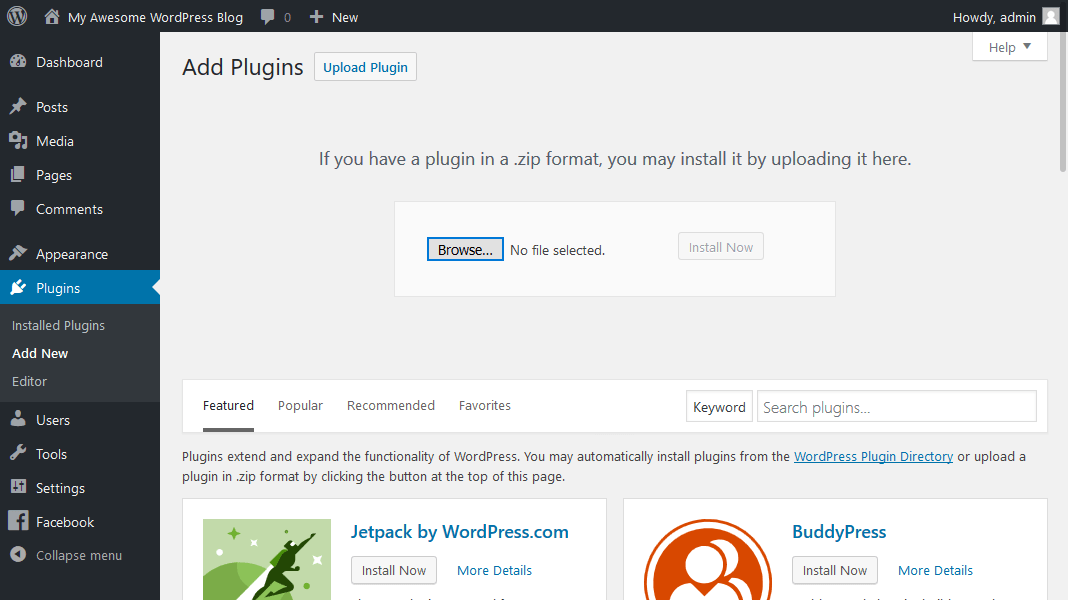
To install a WordPress plugin go to the wpress dashboard click on Plugin then Add New under Plugins and write the name of the plugin you want to install in the search bar. Click Install and then Activate button.
If you want to use a premium whic you have purchased from WP plugins Directory, it can be also add maually by uploading it's zip file.
Theme installation is too easy cick plugin Add New button under Plugins and hit Upload Plugin. Now select a plugin where you have saved in your pc and upload it. Finally, install and activate the plugin. If you need a detailed guide, see this tutorial
Essential WordPress Plugins
There are so many WordPress plugins – it could be hard to choose the right one. In fact, many of the plugins serve the same purpose, for example, there are dozens of WordPress caching plugins.
That is why we decided to list the best WordPress plugins that are essential for every WordPress blog.
- Google XML Sitemaps. This plugin has the funtionality to generate XML- sitemaps automatically of your your website for search engine.
- Yoast SEO. Probably the most popular YastSEO plugin of WordPress will help you improve the search engine optimization. From meta tags to writing suggestions. Yoast SEO plugin is one of the best plugin regarding SEO.
- Wordfence Security. This plugin will keep your WP site safe and secure from hackers and malware. It has firewall and malware.
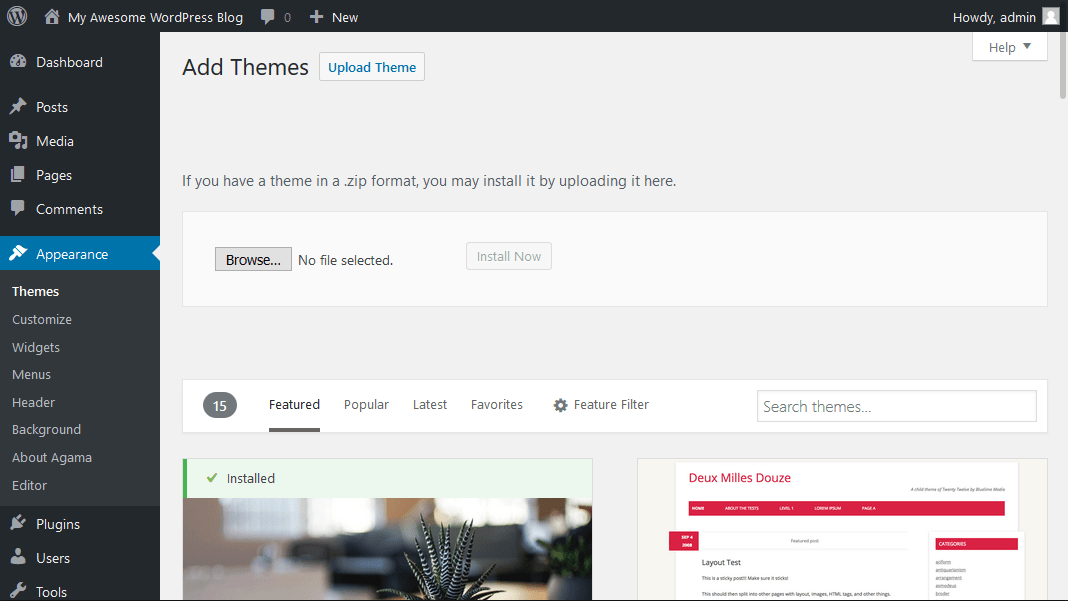
- Contact kind seven. easy however terribly powerful WordPress contact kind plugin. produce any contact or perhaps lead generation forms with this plugin. It’s not suggested to clog Wordpress with dozens of plugins because it will decrease site’s performance. Keep your WordPress clean by putting in solely essential plugins and delete those you're not victimization. Step five - putting in WordPress Themes The look of WordPress website may be modified by applying themes. There area unit free and premium WordPress themes. a number of them area unit universal and may be used on any web site. Others area unit engineered for a really specific purpose, for instance, the e-commerce themes. WordPress created theme installation super straightforward. It virtually takes simply many minutes to put in free WordPress themes. In order to proceed, access the looks section and rummage around for a pleasant wanting theme. you'll even filter themes by options or colors. Theme preview feature helps you to see however your web site can look with a specific theme. This is often helpful, because it can save it slow - you may not have to be compelled to install multiple themes simply to search out the theme that matches your desires. The higher than technique is appropriate for gratis and freemium themes solely. What if you bought a pleasant wanting premium theme? During this case, you may have to be compelled to transfer the theme files manually. Access identical look section, press the transfer Theme button and choose the theme’s .zip file. It will take up to several minutes for the uploading method to finish. Once it's done, simply activate the theme. want precise steps? See a comprehensive tutorial on a way to install themes.------------
Step 6 – Optimizing WordPress Performance
In this WordPress tutorial, we've currently learned a way to install and use WordPress so as to form and manage your very own web site. As your WordPress website grows, therefore will the quantity of text, images, code and different media files.
A bigger web site implies that it'll take longer to load. To avoid slow interval in WordPress, you must additionally invest it slow in improvement.
It will make sure that your pages load quickly and with efficiency, thus, exploit your guests happy and desperate to come for a lot of.
Everyone has encountered a slow web site a minimum of a number of times and felt the frustration that comes whereas waiting endlessly for it to load.
Taking that under consideration, disbursement it slow to enhance your WordPress speed could be a particular plan. the most effective half regarding WordPress is that it’s very easy to optimize because of the quantity of plugins and different tools offered.
You can create your WordPress website lightning quick while not even having any cryptography data the least bit. to induce you on the correct track, we are going to cowl a number of WordPress improvement techniques which will give a notable speed boost to your web site.
Step 6.1 – victimization WordPress Caching Plugins
The first step in optimizing your WordPress website is fitting a WordPress caching plugin. Is short, a cache could be a temporary information storage. In most cases, active information is cached which ends in reduced loading times.
For example, after you access a oftentimes visited website, your browser can have some of the site’s static content settled in its cache.
As a result, the browser has to request fewer files and data from the server that ultimately results in faster loading.
WordPress caching plugins work by making a static version of your web site and delivering it, rather than loading all PHP scripts whenever once somebody refreshes or re-enters your website.
Most popular WordPress caching plugins are:
WP Super Cache
W3 Total Cache
WP quickest Cache
You may realize a close orientate a way to implement WP Super Cache plugin for your WordPress website here.
Step 6.2 – Optimizing WordPress pictures
Image improvement is another crucial task that ought to be worn out order to create your WordPress website quick. Generally, there area unit two main problems that cause pictures to load slowly:
Using overlarge pictures. for instance, you transfer a five hundred x five hundred dimension image however your website resizes it to one hundred x one hundred. As a result, the visitor’s browser can need to transfer the larger file 1st, scale it down and solely then show it. the right means would be to easily transfer a one hundred x one hundred dimension image in order that the excessive task of lowering the image would be avoided. The image would additionally take up less house that means, leading to associate overall boost of speed. a close orientate a way to find such pictures and scale them down is found here.
Images aren't absolutely compressed. you'll be able to save scores of house and information measure by properly pressing your pictures. Luckily, WordPress includes a very nice plugin that may assist you thereupon, it’s referred to as WP Smush. you'll be able to realize a close orientate a way to implement this plugin and optimize your WordPress pictures here.
The a lot of pictures your WordPress website has, the a lot of helpful this improvement task are going to be.
Step 6.3 – enabling gzip Compression for WordPress
Enabling gzip compression for a WordPress web site could be a good way to extend speed and performance. In short, gzip compression works by finding similar strings in an exceedingly computer file and substitution it quickly, leading to a smaller file size.
HTML and CSS files have heaps of repetitive text and areas, creating gzip compression terribly effective. On the full, it will scale back the scale of a WordPress page by up to 50-70%.
There area unit a number of ways in which to alter gzip compression:
Enabling gzip compression via .htaccess file (recommended). A a lot of careful WordPress tutorial is found here.
Enabling gzip compression via WordPress plugins, like GZip Ninja Speed.
One issue that you just ought to detain mind is that gzip compression might slightly increase C.P.U. usage. If C.P.U. isn't a difficulty, then gzip compression could be a very good way to optimize your WordPress website.
Step 6.4 – A lots of JavaScript coding links in WordPress
Most themes, plugins and social media add-ons use heaps of JavaScript that is by default loaded 1st once accessing a website. this can create the hypertext markup language and different visual contents seem solely when the JS is loaded.
You can defer parsing of JavaScript in order that the visual parts seem quicker, whereas varied social media buttons and different content that uses JavaScript would be loaded subsequently.
This is one amongst the techniques c
tutorial.
In this WordPress tutorial, we've currently learned a way to install and use WordPress so as to form and manage your very own web site. As your WordPress website grows, therefore will the quantity of text, images, code and different media files.A bigger web site implies that it'll take longer to load. To avoid slow interval in WordPress, you must additionally invest it slow in improvement.
It will make sure that your pages load quickly and with efficiency, thus, exploit your guests happy and desperate to come for a lot of.
Everyone has encountered a slow web site a minimum of a number of times and felt the frustration that comes whereas waiting endlessly for it to load.
Taking that under consideration, disbursement it slow to enhance your WordPress speed could be a particular plan. the most effective half regarding WordPress is that it’s very easy to optimize because of the quantity of plugins and different tools offered.
You can create your WordPress website lightning quick while not even having any cryptography data the least bit. to induce you on the correct track, we are going to cowl a number of WordPress improvement techniques which will give a notable speed boost to your web site.
Step 6.1 – victimization WordPress Caching Plugins
The first step in optimizing your WordPress website is fitting a WordPress caching plugin. Is short, a cache could be a temporary information storage. In most cases, active information is cached which ends in reduced loading times.
For example, after you access a oftentimes visited website, your browser can have some of the site’s static content settled in its cache.
As a result, the browser has to request fewer files and data from the server that ultimately results in faster loading.
WordPress caching plugins work by making a static version of your web site and delivering it, rather than loading all PHP scripts whenever once somebody refreshes or re-enters your website.
Most popular WordPress caching plugins are:
WP Super Cache
W3 Total Cache
WP quickest Cache
You may realize a close orientate a way to implement WP Super Cache plugin for your WordPress website here.
Step 6.2 – Optimizing WordPress pictures
Image improvement is another crucial task that ought to be worn out order to create your WordPress website quick. Generally, there area unit two main problems that cause pictures to load slowly:
Using overlarge pictures. for instance, you transfer a five hundred x five hundred dimension image however your website resizes it to one hundred x one hundred. As a result, the visitor’s browser can need to transfer the larger file 1st, scale it down and solely then show it. the right means would be to easily transfer a one hundred x one hundred dimension image in order that the excessive task of lowering the image would be avoided. The image would additionally take up less house that means, leading to associate overall boost of speed. a close orientate a way to find such pictures and scale them down is found here.
Images aren't absolutely compressed. you'll be able to save scores of house and information measure by properly pressing your pictures. Luckily, WordPress includes a very nice plugin that may assist you thereupon, it’s referred to as WP Smush. you'll be able to realize a close orientate a way to implement this plugin and optimize your WordPress pictures here.
The a lot of pictures your WordPress website has, the a lot of helpful this improvement task are going to be.
Step 6.3 – enabling gzip Compression for WordPress
Enabling gzip compression for a WordPress web site could be a good way to extend speed and performance. In short, gzip compression works by finding similar strings in an exceedingly computer file and substitution it quickly, leading to a smaller file size.
HTML and CSS files have heaps of repetitive text and areas, creating gzip compression terribly effective. On the full, it will scale back the scale of a WordPress page by up to 50-70%.
There area unit a number of ways in which to alter gzip compression:
Enabling gzip compression via .htaccess file (recommended). A a lot of careful WordPress tutorial is found here.
Enabling gzip compression via WordPress plugins, like GZip Ninja Speed.
One issue that you just ought to detain mind is that gzip compression might slightly increase C.P.U. usage. If C.P.U. isn't a difficulty, then gzip compression could be a very good way to optimize your WordPress website.
Step 6.4 – A lots of JavaScript coding links in WordPress
Most themes, plugins and social media add-ons use heaps of JavaScript that is by default loaded 1st once accessing a website. this can create the hypertext markup language and different visual contents seem solely when the JS is loaded.
You can defer parsing of JavaScript in order that the visual parts seem quicker, whereas varied social media buttons and different content that uses JavaScript would be loaded subsequently.
This is one amongst the techniques c
tutorial.

0 Comments